You can add any Lysora device to your Lysora Cloud account, which allows you to manage and configure the devices remotely. Adding can be done through the Lysora app, or by logging into the Lysora Cloud Portal from your web browser.
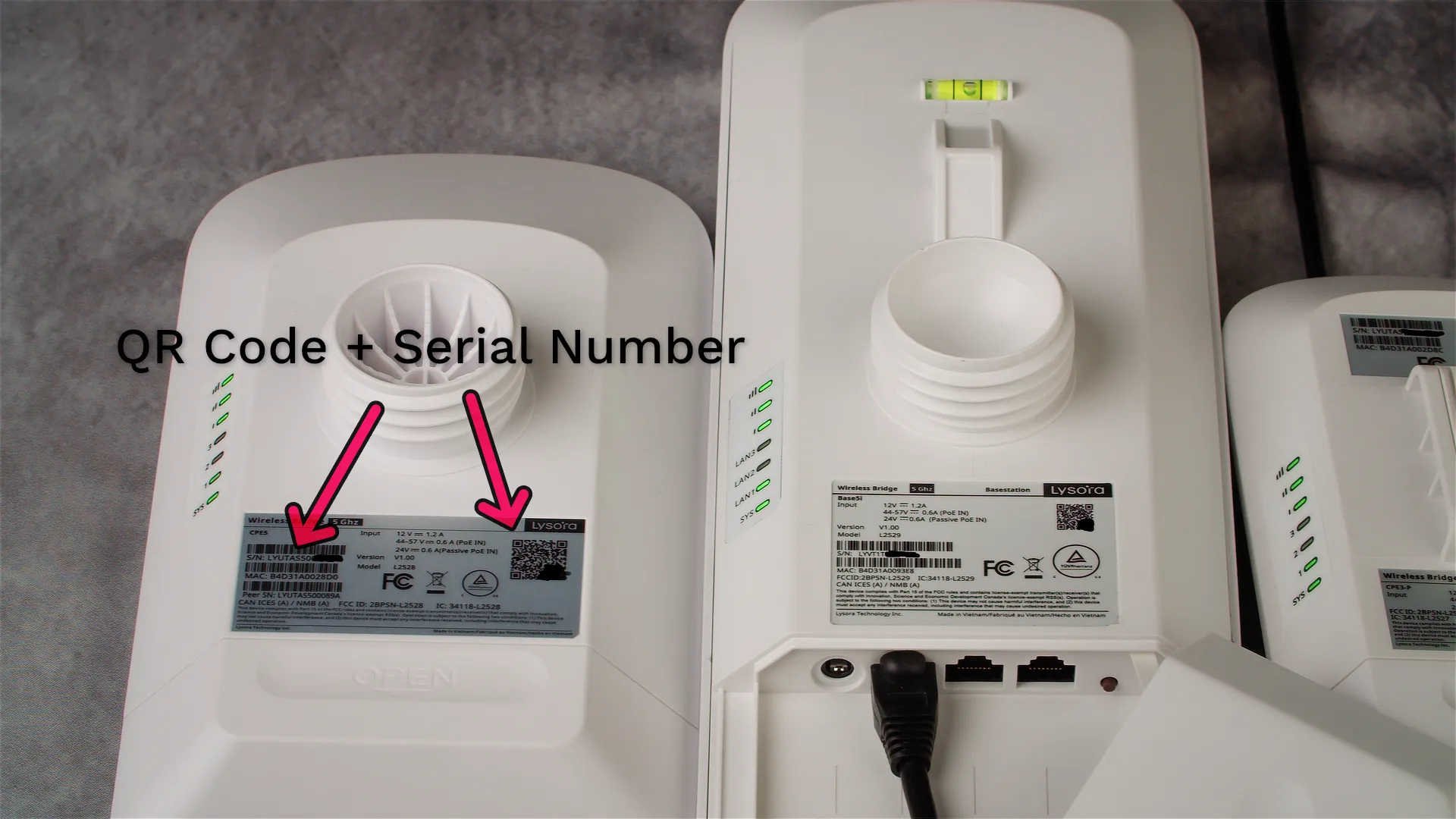
On the back of the device, there will be a label with a 13 to 15 character serial number. For example, it might look like LYFK2AB001430 – this is just a made up serial number but it closely matches the actual format.
This is the serial number you’ll use to add the device to the cloud.
You can also find the serial number on the box itself – which you can use in case you’ve already installed the device someplace that’s difficult to reach. Or, your Lysora distributor might recorded have a copy of the serial numbers on your invoice.
Either way, once you have the serial numbers, you can add them through the web portal or via the Lysora app. Let me walk you through each method, step-by-step.
Method 1 – via Lysora Cloud Portal
To get started, visit https://cloud-us.lysoratech.com/ in your web browser. Then, login to your Lysora account (or sign up if you don’t have) and navigate to Projects –> Add Project.
Then, fill out the information for your project – including the Project Name and Management Password. Once you’ve filled out the project info, click OK.
Next, you will be asked to choose your device type. If you’re adding a wireless access point, choose AP. For a router, choose Gateway. The other options are self-explanatory.
Then, enter the serial number for your device. Again, you can find it on a label on the device or on the outside of the box.
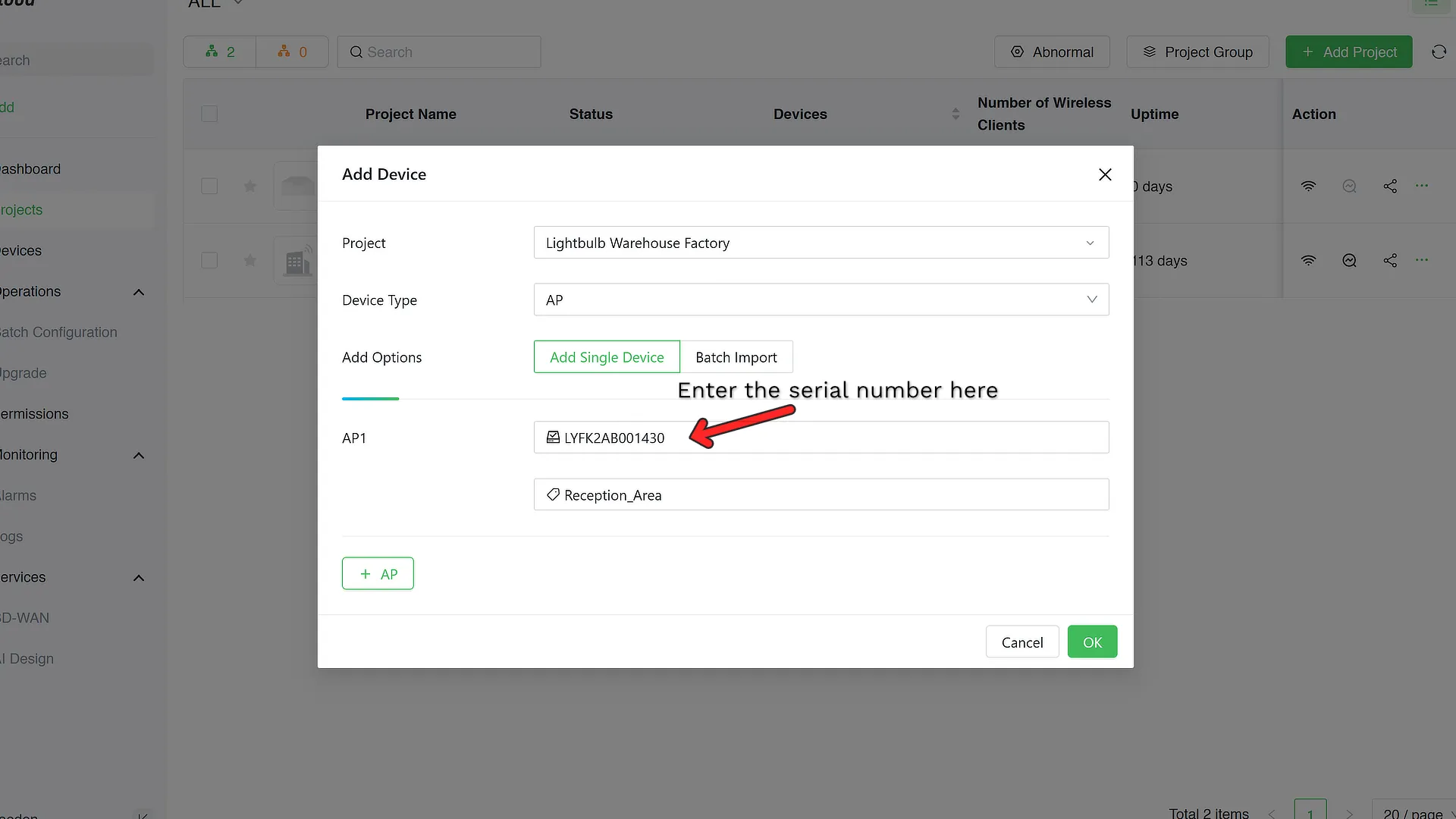
If you want to add more devices, click the green plus (+) icon at the lower left corner. Otherwise, you can click OK to finish adding your device. As long as it’s connected to the internet, it should appear as ON with a green status icon in the project page.
You can also add devices to an existing project by navigating to it from Projects –> *The name of your project* –> Add Device. Then, select the device type and enter the serial number to add it.
Method 2 – via Lysora App
You can also add devices to your Lysora Cloud using the Lysora app (Google Play | iOS) on your smartphone.
The app allows you to add by scanning the QR code on the back of the device – which can be faster and more reliable than entering a 13-character string by hand.
To get started, download the Lysora app onto your phone using one of the links above – or by searching for Lysora within your phone’s app store.
After opening the app, you’ll need to sign into your Lysora Cloud account. If you don’t have one, tap on Create account underneath the log in button.
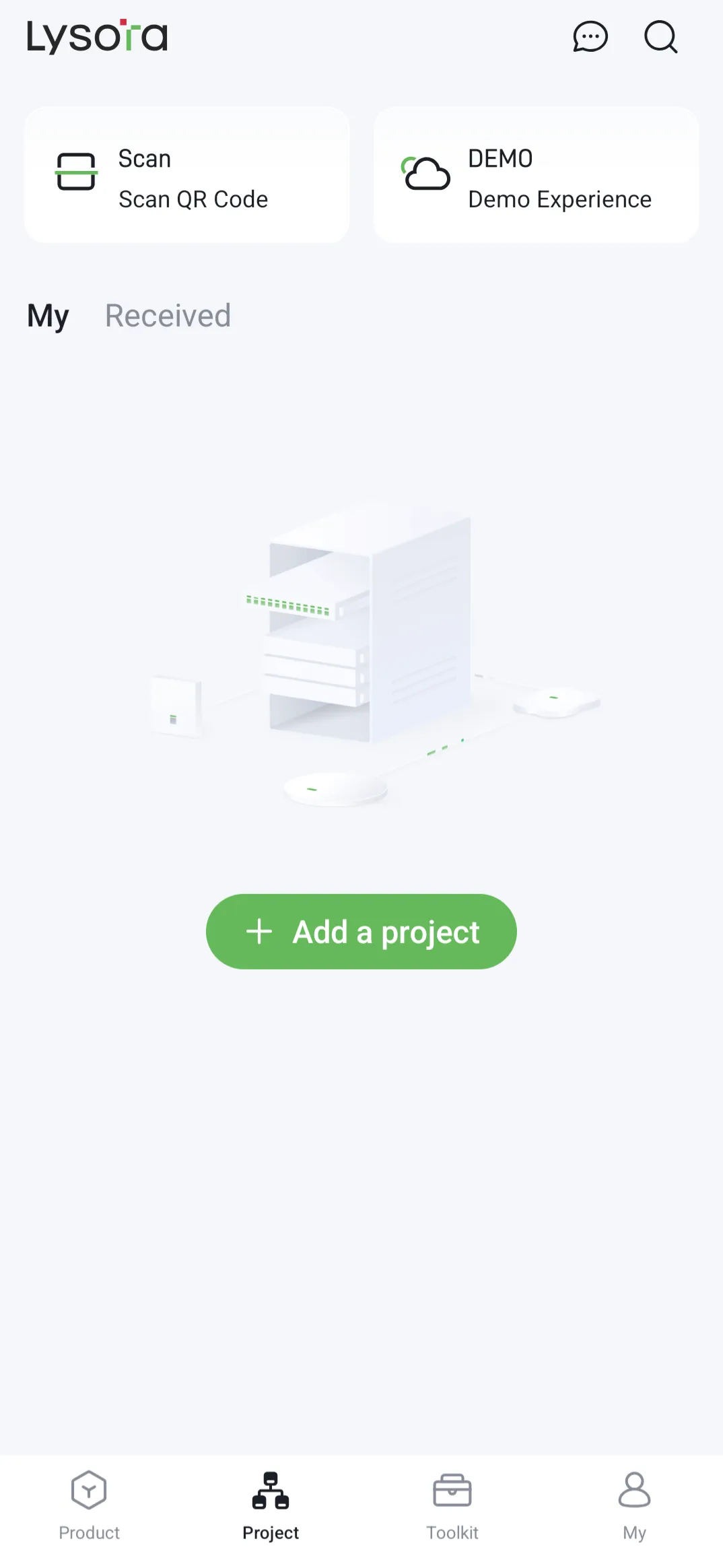
Once you’re logged in, click Scan at the top right to scan the QR code of the device. Accept any permissions for camera usage, and then scan the QR code (located at the back or bottom of the device) to add it.
If you’re not able to scan the QR code, then you can manually enter the serial number by opening the project folder, opening the Workspace tab at the bottom, and selecting Scenario –> Add Devices. This will pull up your camera, but at the bottom right you can tap Manually Enter to input the serial number.
After entering the serial number, the device should appear online within the project and you’ll be able to configure it.
Quick Recap
By adding the Lysora device to your cloud account, you’ll be able to manage it remotely and check the status. Plus, you can do firmware upgrades and share the device with other users.
To do so, follow the steps below:
- Register for a Lysora Cloud Account through the cloud portal or using the Lysora app.
- Create a project (or navigate to an existing project) and select the device type to add.
- Enter the serial number or scan the QR code to add the register the device under your cloud account.
Make sure you get into the habit of adding your devices to the Lysora Cloud. It makes troubleshooting a breeze and allows you to see all your projects from a single dashboard.