If you’ve landed on this article, you probably already know what UPnP is – so I’ll skip the introduction and cut right to the chase.
There’s currently only one way to enable UPnP on your Lysora Router – which is by logging into it through the web interface. You cannot enable UPnP through the Lysora Cloud at this time (as of August 2026).
The fastest way is to log in to the router directly through its local IP address (default 192.168.100.1) and navigate to the UPnP settings under Gateway –> Config –> Advanced –> UPnP.
By default, UPnP will be disabled, so be sure to enable it if you want UPnP active on your network. However, it’s important to be aware that UPnP is slightly less secure when it’s enabled, so if you don’t need it, then it’s best to leave it disabled.
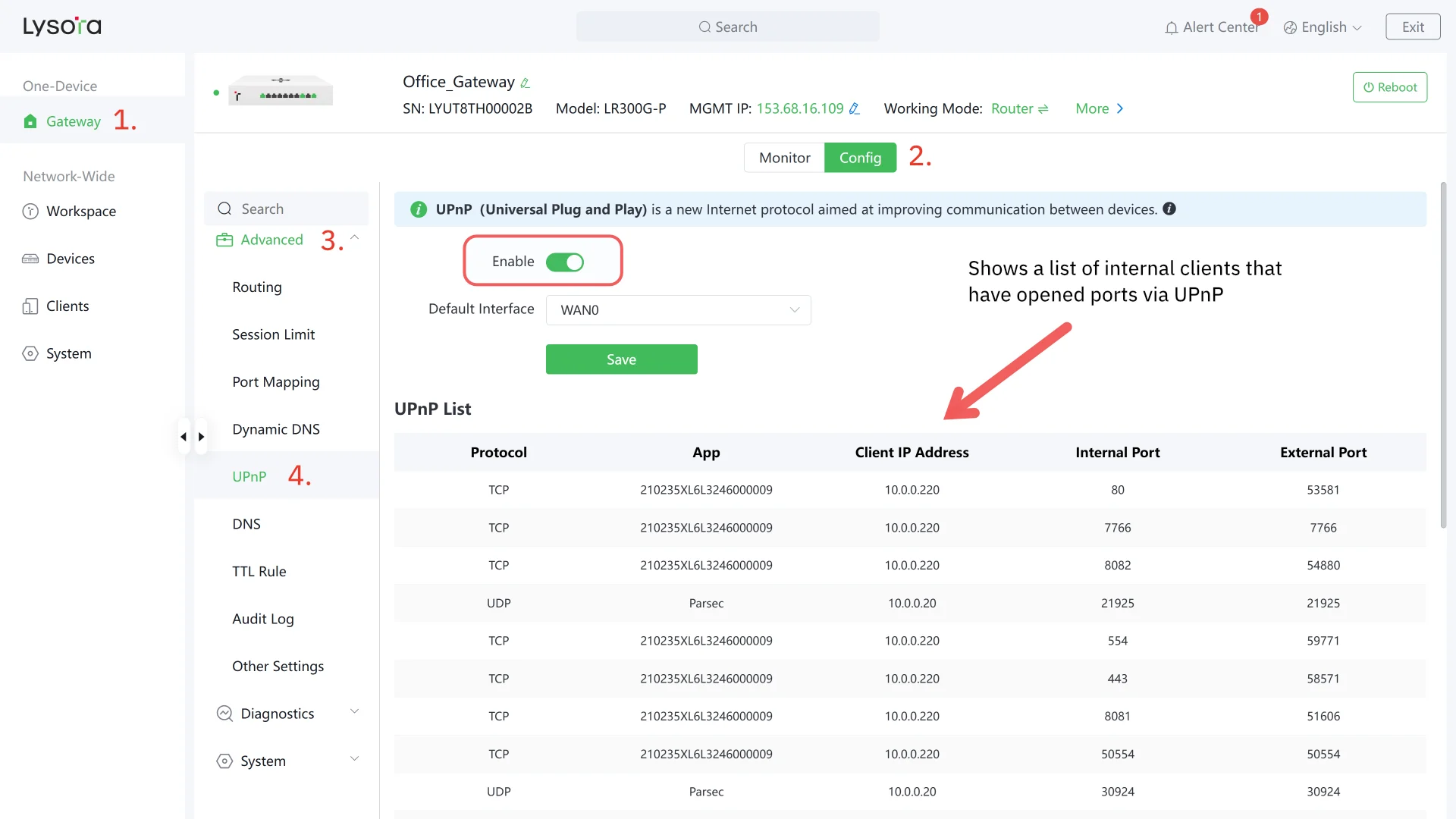
You can also choose the default interface (port) where UPnP will take effect. You should only change this setting if you have multiple WAN connections going into your router – otherwise leave it on the default setting, WAN 0.
If you have devices that require UPnP to be enabled, such as a Uniview NVR or IP camera – you’ll see the ports open up in the UPnP list. You can monitor this list to check whether UPnP is working properly.
Common Use Cases for UPnP
So, why would you want to enable UPnP in the first place, especially if it makes your network less secure? Well, there are plenty of use cases, as I’ll outline below:
Gaming consoles and online multiplayer
This is one of the most common reason for people to turn UPnP on. Xbox, PlayStation, and Nintendo Switch consoles all rely on being able to open ports for multiplayer matchmaking and voice chat. If UPnP is disabled, your console will usually report a “Strict” or “Moderate” NAT type (Type 3 or Type 2 on PlayStation), which can mean longer matchmaking times, party chat that won’t connect, and an overall worse online experience.
With UPnP enabled, the console is able to request the ports it needs, which will flip your NAT type to Open and allow you to continue gaming without restrictions.
IP cameras and NVRs
Security equipment is another common use case. Many security systems – especially older ones from Hikvision, Uniview, Dahua, and Reolink – required you to open a few ports on your router to view the cameras remotely. This has mostly become obsolete, since every vendor started offering their own cloud services.
So, rather than connecting directly to your router through the internet, you would instead connect to the vendor’s cloud service – which would then handle the connection back to your camera system. This adds one layer of extra complexity and can reduce your privacy (what information these vendors are collecting?) – but generally, it’s worth the trade-off for most users.
By enabling UPnP on your router, the ports will automatically be opened, and you can connect directly to your cameras without the need for cloud services.
Media servers
For those who run a media server at home – such as Plex or Jellyfin – you’ll need to open ports on your router in order to access your content remotely. For example, Plex has a setting called Remote Access, and they say it works best if you have UPnP enabled in your router.
The fallback option is to do manual port forwarding – which isn’t an issue when you have only a single device that requires remote access – but it can be difficult to manage with lots of equipment.
Torrenting and other P2P applications
If you’re running a BitTorrent application – such as qBittorrent or Deluge – then you’ll be happy to know that they work much better when you have UPnP enabled on your router. This helps you connect to peers who are behind firewalls, improving your download speeds since you’ll have more peers to grab the files from.
Otherwise, you’ll only be able to download from peers who have an open port – which can severely limit your ability to download files – especially for less popular torrents.
Why not just forward the ports manually?
You absolutely could forward ports manually, which is also best practice when you have just a few devices with a handful of ports that need to be opened. However, some modern applications have a dynamically changing or randomized set of port requirements, which makes it difficult or impossible to do manual port forwarding.
Also, if your device is set to DHCP on the network, and you reboot your router, the IP address will probably change – which will break your manual port forwarding rules. In this case, UPnP is a lot more convenient – albeit slightly more risky. However, Lysora routers have a solid track record for security, which should make you feel confident about enabling port forwarding in the first place.
So, if you’re looking to play games, run a media server for friends and family, or have a security camera system – you may want to consider enabling UPnP in your router.